
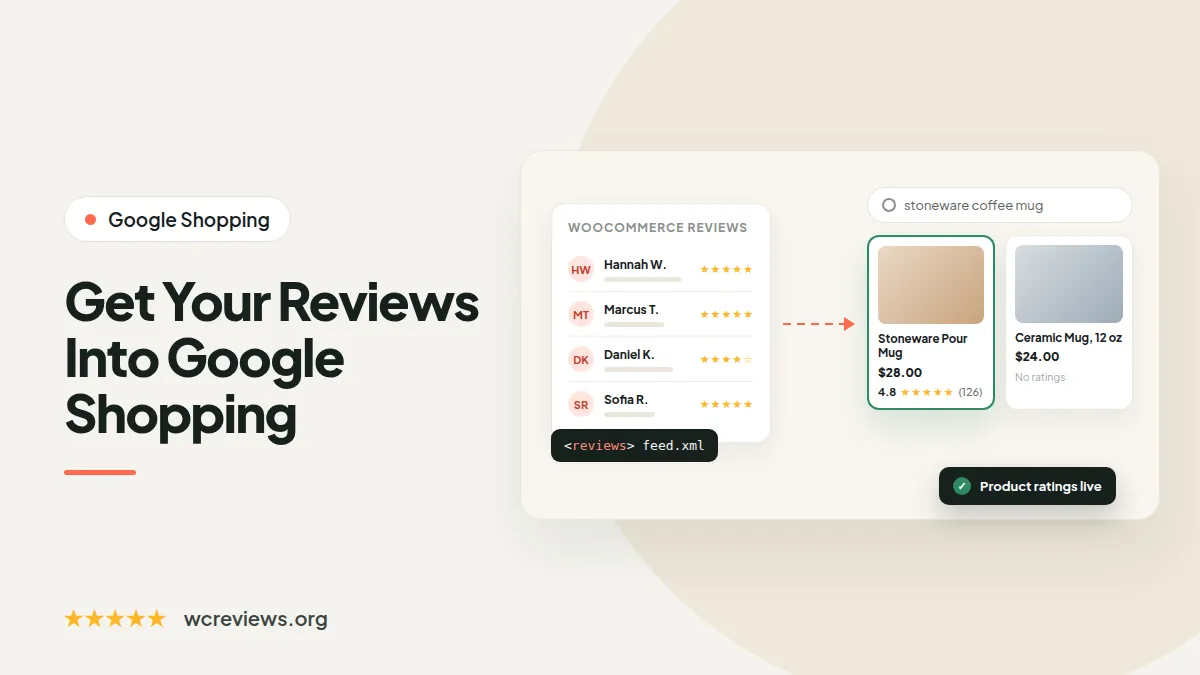
When shoppers search on Google for a product you sell, your listing sits next to a dozen others. The ones with gold stars and a review count underneath get noticed first. Those stars come from Google’s Product Ratings program, and they don’t appear automatically just because your WooCommerce store has reviews. You have to send your reviews to Google.
This guide explains what Product Ratings are, what Google requires, how to turn your WooCommerce reviews into the feed Google needs, and how to keep your stars showing once they’re live.
What Are Google Product Ratings?
Product Ratings are the star ratings and review counts that appear on Shopping ads and free product listings in Google. They’re on a 5-star scale and are based on reviews of that specific product, collected from your store and, when Google can match the product, from other sources too.
They’re easy to confuse with two other kinds of Google stars:
- Review rich snippets are the stars that appear under your product page in normal search results. They come from structured data on your own product pages, not from a feed. Our guide to showing star ratings in Google covers those.
- Store Ratings rate your business as a whole, such as delivery and customer service. They’re a separate program with its own requirements.
This guide is about Product Ratings: stars for individual products in Google Shopping.
What Google Requires
According to Google’s Product Ratings eligibility page, you need:
- At least 50 reviews across all your products. Below that, ratings won’t show on Google Shopping or Google Ads. The 50 can be spread across your whole catalog; they don’t all need to be on one product.
- A Google Merchant Center account with your products already approved for Shopping ads or free listings. It must be a standalone account or a sub-account, not a multi-client account, and you need admin access.
- Matching domains. The product URL in each review must use the same domain registered in your Merchant Center account.
- Regular updates. You must send your full reviews feed at least once a month.
- Reviews that follow Google’s policies, covered below.
Product Ratings are available in countries where Shopping ads and free product listings are available.
Step 1: Get to 50 Reviews
If you’re short of 50, start here. The most reliable way is to ask every customer automatically a few days after delivery. Our guides on sending review reminders in WooCommerce and review request emails walk you through it.
Don’t be tempted to pad the count. Google’s policies don’t allow reviews from staff or people with a stake in the product, or reviews generated by AI, and it can block your whole feed. Our article on why fake reviews backfire explains the wider risks.
Step 2: Add Product Identifiers to Your Products
Google needs to know exactly which product each review belongs to. It does that with product identifiers, and this is where most WooCommerce setups go wrong.
- GTIN (the UPC, EAN, ISBN, or JAN barcode number) is the strongest identifier. Recent versions of WooCommerce include a GTIN, UPC, EAN, or ISBN field in each product’s Inventory tab.
- Brand plus MPN (manufacturer part number) works when a product has no GTIN, such as handmade or private-label products.
- SKU helps Google match reviews to your own products, but use it alongside the identifiers above rather than on its own.
The key rule: use the same identifiers in your reviews feed as in your product feed. If your product feed sends a GTIN and your reviews feed sends only an SKU, Google may not connect them, and your reviews won’t appear.
Step 3: Create a Product Reviews Feed
Google doesn’t read reviews from your product pages for Product Ratings. You send them in a product reviews feed: an XML file in Google’s format that lists each review, its rating, the reviewer, the date, and the product it belongs to. Here’s a simplified example of one review:
<review>
  <review_id>1042</review_id>
  <reviewer><name>Hannah W.</name></reviewer>
  <review_timestamp>2026-10-12T09:30:00Z</review_timestamp>
  <content>The glaze is even prettier in person.</content>
  <review_url type="singleton">https://example.com/product/pour-mug/#comment-1042</review_url>
  <ratings><overall min="1" max="5">5</overall></ratings>
  <products>
    <product>
      <product_ids>
        <gtins><gtin>0012345678905</gtin></gtins>
        <brands><brand>Example Pottery</brand></brands>
      </product_ids>
      <product_url>https://example.com/product/pour-mug/</product_url>
    </product>
  </products>
</review>
You don’t need to write this by hand. WooCommerce stores have three main options.
Option A: A review feed plugin
A plugin reads your WooCommerce reviews and publishes the XML at a URL that Google fetches on a schedule. This keeps your reviews in your own store and is the simplest route for most shops. Options include:
- Google Product Review Feed for Google Shopping Ads, a paid extension sold on WooCommerce.com.
- CTX Feed, a product feed plugin whose free version includes a Google product review feed template.
- Product Reviews XML for Google Merchant Center, a free plugin on WordPress.org.
Whichever you choose, check that it can send the same identifiers as your product feed, and that it can include all your approved reviews rather than only the latest.
Option B: A review platform that’s a Google partner
If you collect reviews through a third-party review platform, it may already be an approved Product Ratings aggregator that sends your reviews to Google for you. This is convenient, but it usually needs a paid plan, and your reviews live on someone else’s platform. Google lists its supported aggregators in the Product Ratings help pages.
Option C: Build the feed yourself
Developers can export reviews to Google’s XML schema with a custom script. It’s free, but you’ll need to keep it working whenever WooCommerce or your product data changes. For most stores a plugin is less work.
Step 4: Sign Up and Add the Feed in Merchant Center
- Sign up for Product Ratings. Google asks merchants to register interest in the program first, using the form linked from its Product Ratings help pages. Do this once you have 50 reviews.
- Add your reviews feed. In Merchant Center, find the product reviews section (at the time of writing, Reviews > Product reviews > Manage product review sources > Add product reviews). Merchant Center menus move around, so if you can’t find it, search Merchant Center for “product reviews”.
- Choose how Google gets the file. For a plugin-generated feed, use a scheduled fetch from the feed URL, so Google picks up new reviews automatically. You can also upload a file, or use SFTP, Google Cloud Storage, or the API.
- Wait for review. Google checks your feed for data quality and policy issues, which typically takes 2 to 4 weeks. It’s normal for the feed to show as inactive during this time.
Step 5: Keep Your Ratings Eligible
Getting approved is the hard part. Staying eligible mostly means following Google’s Product Ratings policies:
- Send the full feed at least monthly. A scheduled fetch handles this for you. Stale feeds lose eligibility.
- Don’t delete old reviews from the feed just because they’re old. Google removes reviews that are left out of your next upload, so only exclude reviews you’d remove from your store anyway.
- Include honest negative reviews. Reviews must be honestly collected from customers who bought the product, and a feed that’s only five stars looks less trustworthy to shoppers too.
- Flag incentivized reviews. Discounts or gift cards for reviews are allowed, as long as the reward doesn’t depend on the rating. Mark those reviews with the
is_incentivized_reviewattribute. See our guide to offering incentives for reviews. - Only send reviews you own. Google doesn’t accept reviews syndicated from other sources, such as reviews copied from a marketplace listing. Our guide on importing reviews into WooCommerce explains which reviews are yours to use.
- Moderate before you send. Reviews with phone numbers, email addresses, links, personal details, offensive language, or off-topic content (such as complaints about shipping) can be removed, and too many can get a feed blocked.
- Keep the 5-star scale. Don’t convert a different rating scale to stars, or turn yes/no answers into star ratings.
Troubleshooting: Why Aren’t My Stars Showing?
- You’re under 50 reviews. Count only reviews in the feed, not reviews still waiting for approval in WooCommerce.
- Onboarding isn’t finished. Allow 2 to 4 weeks after your first upload.
- Reviews aren’t matching products. Compare a product’s GTIN, brand, MPN, and SKU in your product feed against the same product in your reviews feed. They need to be identical.
- The domain doesn’t match. Product URLs in the feed must use the domain registered in Merchant Center, including the right
wwwor non-wwwversion. - The product has too few reviews. Google decides when a product has enough reviews to show a rating, so a product with only one or two reviews may not show stars even when the program is active.
- The feed has errors or went stale. Check the product reviews section in Merchant Center for processing errors, and confirm the last successful fetch is recent.
Frequently Asked Questions
Does it cost anything to show Product Ratings?
Google doesn’t charge to submit a reviews feed. You may pay for a feed plugin or a review platform, and Shopping ads cost money as usual, but free product listings can show ratings too.
Do I need 50 reviews on every product?
No. The 50-review minimum is across all your products. Individual products still need enough reviews before Google shows their rating.
Will my WooCommerce reviews show up in Google Shopping automatically?
No. Review structured data on your product pages helps with stars in regular search results, but Product Ratings in Google Shopping need a product reviews feed in Merchant Center.
How long does it take for ratings to appear?
Google’s review of a new feed typically takes 2 to 4 weeks. After that, new reviews appear as Google fetches your updated feed.
Can I leave out negative reviews?
You shouldn’t. Google expects reviews to be honestly collected and shared, and you can’t remove reviews just to raise your average. Remove only reviews that break your own published review rules or Google’s policies, such as spam.
Do photo and video reviews count?
Every review counts toward your total. Google’s feed format also supports reviewer images, but whether your photos are included depends on your feed plugin, so check its settings.
Get Your Stars Into Shopping
To recap: collect at least 50 genuine reviews, add GTINs or brand and MPN to your products, generate a product reviews feed with matching identifiers, register for Product Ratings, and add the feed to Merchant Center with a scheduled fetch. Then keep sending the full feed every month.
The hardest part for most stores is the first step: getting enough good reviews. ReviQuo helps WooCommerce stores collect more of them with automatic review reminders and photo and video reviews. It saves them as standard WooCommerce reviews, so review feed plugins that read WooCommerce reviews can include them. Disclosure: ReviQuo is our plugin.