
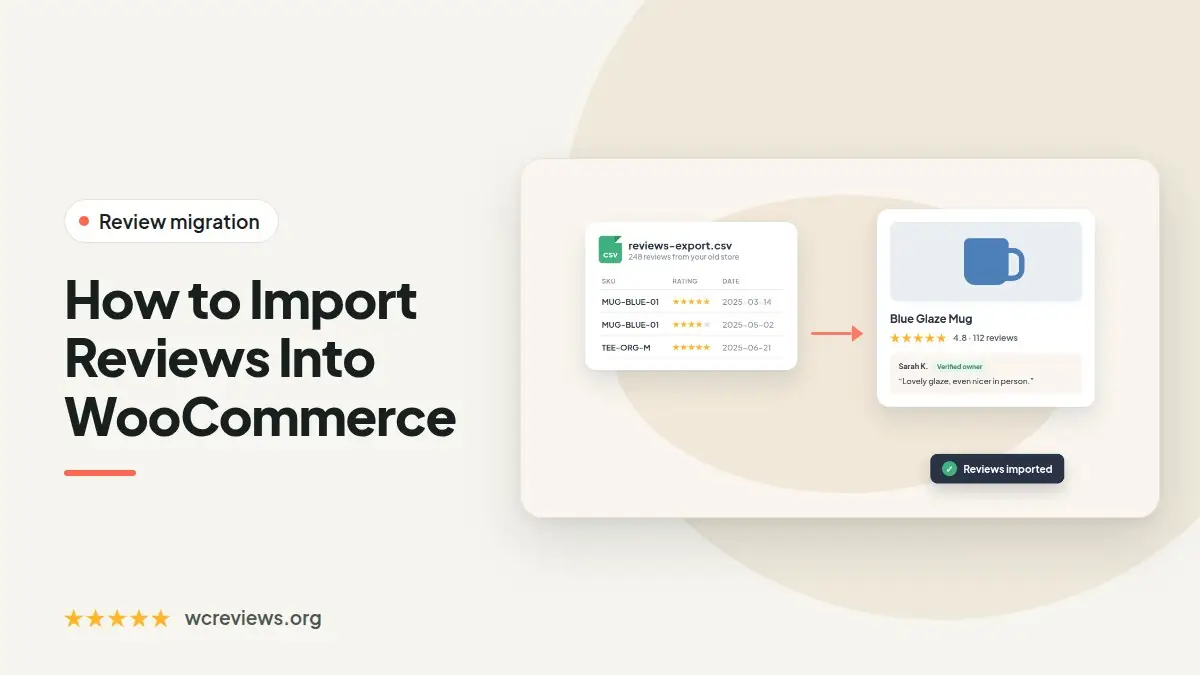
If you’re moving your store to WooCommerce, your existing reviews are some of the most valuable things to bring with you. Years of honest ratings don’t need to disappear just because you changed platforms. But there’s a catch: WooCommerce’s built-in product import doesn’t include reviews, and not every review you can find online is one you should import.
This guide explains why your reviews don’t come across with your products, which reviews are safe to import and which aren’t, the main ways to import them, a checklist for getting ratings, dates, and badges right, and what to do after the import.
Why Your Reviews Didn’t Come Across With Your Products
WooCommerce has a built-in product CSV importer and exporter under Products > All Products. It handles prices, stock, images, categories, and attributes. For reviews, it only includes one column: Allow customer reviews?, which turns the review form on or off for each product. The reviews themselves aren’t part of the file.
That’s because WooCommerce stores reviews separately from products. Each review is a WordPress comment attached to the product, with the star rating and the “verified owner” status saved alongside it. So moving reviews is a separate job from moving products, and it’s best done after your products are already in place.
Reviews You Can Safely Import
The simple rule: import reviews that real customers wrote about products you sold them. That usually means:
- Reviews from your previous store, such as a Shopify store, an old WooCommerce site, or another ecommerce platform you’re moving away from.
- Reviews from your own marketplace shop, such as your Etsy shop, when you sell the same products on your own site. These are your customers’ opinions of your products, so they belong to your product pages too.
- Reviews collected by email or a review app that you ran for your own store.
Even with your own reviews, be open about where they came from. A short note on the product page or in the review text, such as “Originally posted on our Etsy shop”, keeps things honest and answers the question before shoppers ask it.
Reviews You Shouldn’t Import
Some import tools make it easy to copy reviews from Amazon, AliExpress, or other marketplaces onto your product pages. It’s tempting, especially for a new store with no reviews. Don’t do it when the reviews were written about another seller’s listing.
Those reviews describe someone else’s product, shipping, packaging, and customer service. Even if your supplier makes the same item, the reviewer never bought from you. Putting their words on your product page tells shoppers something that isn’t true.
It can also get you into trouble:
- Consumer protection law. In the US, the FTC’s Consumer Reviews and Testimonials Rule makes it illegal for a business to create or buy reviews that misrepresent whether the reviewer actually used the product or service, or what their experience was. Other countries have similar rules against misleading reviews.
- Google search results. Google’s review snippet guidelines say: “Don’t aggregate reviews or ratings from other websites.” Breaking them can cost you the star ratings that show in search results.
- The other platform’s terms and the reviewers’ rights. Reviews belong to the people who wrote them and the platforms that host them, not to you. Copying them can break that platform’s terms of use.
If you’re starting from zero, honest ways to get your first reviews quickly are covered later in this guide.
Step 1: Export Your Existing Reviews
How you get your reviews out depends on where they are now:
- Shopify: Shopify’s own free Product Reviews app was discontinued in 2024, so most Shopify stores now use a third-party review app. Look in that app’s settings for an export option, which usually gives you a CSV file.
- Etsy: Check Shop Manager for an export option first. If there isn’t one, many sellers use third-party exporter tools. Check what data a tool can access and Etsy’s terms before using one.
- Another WooCommerce site: Use a review export plugin, or the WooCommerce REST API, to pull reviews from the old site.
- A review platform or email service: Most offer a CSV export of the reviews they collected for you.
Whatever the source, make sure your export includes at least the product, reviewer name, reviewer email, star rating, review text, and date. Photos and store replies are a bonus.
Step 2: Match Each Review to a WooCommerce Product
Your export will identify products by the old platform’s product ID, handle, or name, which WooCommerce won’t recognize. Before importing, add a column with the matching WooCommerce product. The SKU is usually the easiest link if you kept SKUs the same, otherwise use the WooCommerce product ID.
A clean file might look like this:
product_sku,reviewer,reviewer_email,rating,date,review
MUG-BLUE-01,Sarah K.,sarah@example.com,5,2025-03-14,"Lovely glaze, even nicer in person."
MUG-BLUE-01,Tom R.,tom@example.com,4,2025-05-02,"Great mug. Slightly smaller than I expected."
TEE-ORG-M,Priya N.,priya@example.com,5,2025-06-21,"Soft fabric and the size guide was spot on."
Keep reviews for variations, such as sizes or colors, on the main product. WooCommerce attaches reviews to the parent product, not to individual variations.
Step 3: Choose How to Import
Option A: A review import plugin
For most stores, a plugin that imports product reviews from a CSV file is the easiest route. Search the WordPress plugin directory for “import product reviews” and check before you install:
- It’s actively maintained. Look at “Last updated” and “Tested up to”. One of the best-known free review import plugins was closed in 2024, and older guides still recommend it.
- It keeps the original dates and star ratings, rather than stamping every review with today’s date.
- It can match products by SKU, so you don’t have to look up every product ID.
- It can do a test import of a few rows before the full file.
Option B: The WooCommerce REST API
If you or a developer are comfortable with code, WooCommerce’s REST API can create reviews directly. Each review is a request to the product reviews endpoint, POST /wp-json/wc/v3/products/reviews, with fields such as product_id, review, reviewer, reviewer_email, rating, and date_created to keep the original date. A short script can loop through your CSV file and send one request per review. This is the most flexible option for large or unusual migrations.
Option C: A migration service
Some store migration tools and services move products, customers, orders, and reviews together. If you’re moving a large store from another platform, check whether reviews are included in the plan you’re paying for, and which review fields they carry over.
Step 4: Get the Details Right
Before you import everything, check these details on a few test reviews:
- Dates. Keep the original review dates. A product with fifty reviews all dated today looks suspicious, and it’s not accurate. Date formats differ between platforms, so convert them to a standard format such as
2025-03-14first. - Star ratings. Make sure ratings land as whole numbers from 1 to 5. Some platforms export ratings on a different scale or as text.
- The “verified owner” badge. WooCommerce shows this badge when a review’s email address matches someone who bought that product in your WooCommerce store. If you migrated your orders too, imported reviews from those customers can earn the badge naturally. Don’t force the badge on reviews that WooCommerce can’t match. Some tools, including the REST API, let you set it manually. If the original platform verified the purchase, mention that in a note instead.
- Approval status. Decide whether imported reviews should be approved straight away or held for you to check first.
- Photos. Exports often include photo links that point to the old platform. If that platform closes or your account ends, the images break. Download them and host them yourself if you want to keep them.
- Your old replies. If you replied to reviews on the old platform, check whether your tool can import replies as well. Otherwise, consider adding them back in WooCommerce for your most important reviews.
Always back up your site, or work on a staging copy, before a large import. Importing a few test rows first makes mistakes cheap to fix.
Step 5: After the Import
- Check star averages and review counts. WooCommerce saves each product’s average rating and review count, and updates them when reviews change. Reviews added by an import tool or the REST API can leave those totals out of date. If a product’s stars or count look wrong, changing the status of one of its reviews, for example unapproving and approving it again, makes WooCommerce recalculate them.
- Check the product pages. Open a few products and confirm the reviews, stars, and dates display correctly. If reviews don’t appear, see our guide on fixing WooCommerce reviews that aren’t showing.
- Check your shop pages. Star ratings should also appear under products in your shop and category grids.
- Check search results over time. Your star ratings in Google come from your product pages’ structured data. Our guide on showing star ratings in Google explains how to check it.
No Reviews to Import? Build Them Quickly
If you’re starting a new store, or you’ve realized your marketplace reviews aren’t yours to copy, the fastest honest route is asking your own customers. A few habits make a big difference:
- Send an automatic review request a few days after delivery. Our guides on sending review reminders and writing review request emails show you how.
- Make reviewing quick, with a short form and a direct link to the product.
- Accept photos and videos. A few customer photos often persuade shoppers more than many text reviews. ReviQuo adds photo and video reviews to WooCommerce’s own review system, so they work with everything in this guide. Disclosure: ReviQuo is our plugin.
- Reply to reviews, including the bad ones. See how to respond to negative reviews.
For more ideas, read how to get more reviews on WooCommerce.
Frequently Asked Questions
Does the WooCommerce product CSV import include reviews?
No. The built-in product importer and exporter only include the “Allow customer reviews?” setting for each product. Reviews need a separate import using a plugin, the REST API, or a migration service.
Can I import reviews from Shopify to WooCommerce?
Yes. Export your reviews from your Shopify review app as a CSV file, match each review to the WooCommerce product, usually by SKU, and import them with a review import plugin or the REST API.
Can I import Etsy reviews to WooCommerce?
Yes, if they’re reviews of your own Etsy shop’s products and you sell the same products on your site. Mention that they were originally posted on Etsy.
Can I import AliExpress or Amazon reviews to my products?
Not if they were written about another seller’s listing. Those customers didn’t buy from you, so showing their reviews as yours misleads shoppers. It can break consumer protection rules and Google’s review guidelines.
Will imported reviews show the “verified owner” badge?
Only if WooCommerce can match the reviewer’s email to an order for that product in your store, for example because you migrated your orders too. Don’t add the badge manually to reviews it can’t verify.
Why are my star ratings wrong after importing reviews?
The product’s stored average and count may not have been updated by the import. Changing the status of one review for that product makes WooCommerce recalculate them.
Bring Your Reputation With You
To recap: export the reviews your own customers wrote, match them to your WooCommerce products, import them with their original dates and ratings, check the details, and leave other sellers’ reviews where they are. Then keep the momentum going by collecting new reviews from every order.
Collect new photo and video reviews from your own customers with ReviQuo.