
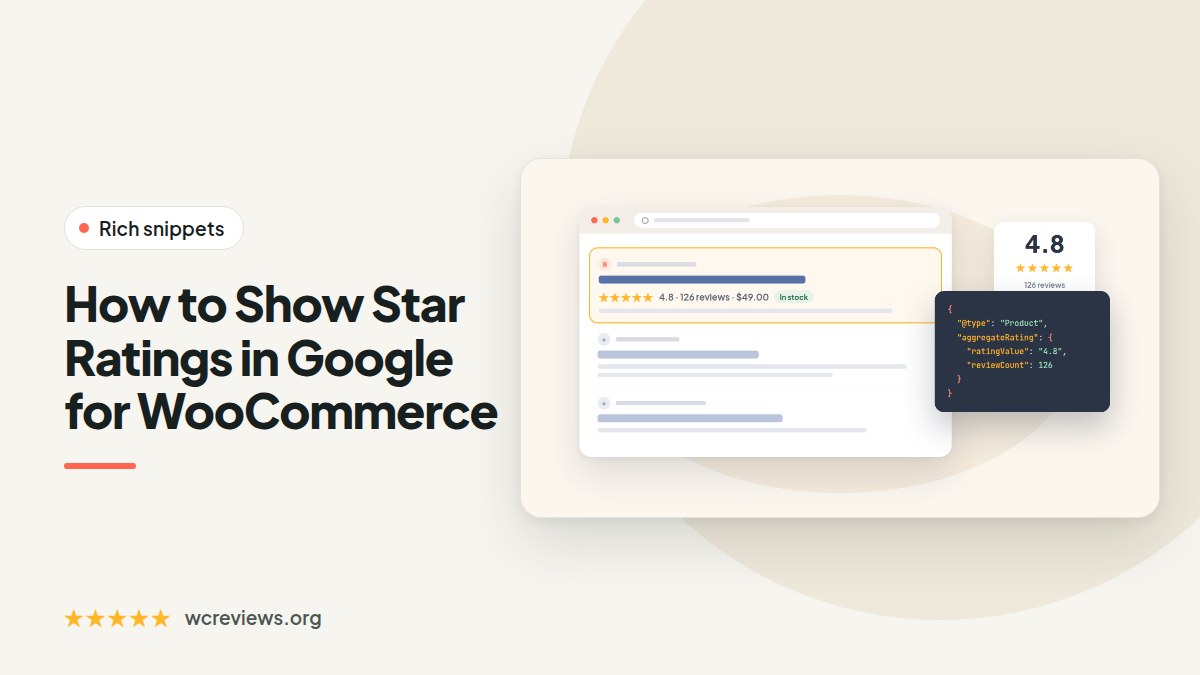
If you want star ratings to show under your products in Google, here’s the short answer: WooCommerce already adds the structured data that makes this possible. As soon as a product has an approved review with a star rating, WooCommerce outputs Product schema with an average rating, a review count, and up to five recent reviews. What’s left for you is to make sure that markup is valid, isn’t duplicated or broken by another plugin, and belongs to a product with real reviews. After that, it’s up to Google, which never guarantees rich results.
This guide explains what review rich snippets are, what WooCommerce outputs on its own, what Google requires, how to test a product page, and how to fix the most common reasons stars don’t appear.
What Are Review Rich Snippets?
A rich snippet is a search result with extra information pulled from structured data on the page. For products, the most noticeable extra is a row of stars with the average rating and the number of reviews. Product results can also show the price and whether the item is in stock.
Google currently describes two related result types for products, both in its product snippet documentation:
- Product snippets are text results with extra details such as ratings, review information, price, and availability.
- Merchant listings are for pages where shoppers can buy the product. They can show in more places, such as shopping-focused results, and use more product details.
A WooCommerce product page is a page where shoppers can buy, so the same markup can count toward both. Stars don’t change your ranking directly, but a result with a rating stands out on the page, which can help more searchers click.
What WooCommerce Outputs by Default
WooCommerce adds JSON-LD structured data to every single product page. You don’t need a plugin for the basics. Here’s what it includes:
- Product details: the product name, URL, description, main image, and SKU.
- Offer: the price, currency, stock status, and how long the price is valid.
- Aggregate rating: the average rating and the number of reviews.
- Reviews: the five most recent approved reviews that have a star rating, each with the author’s name, the rating, the review text, and the date.
- GTIN: if you fill in the GTIN, UPC, EAN, or ISBN field on the product’s Inventory tab with a valid 8, 12, 13, or 14-digit code.
- Brand: if you assign a brand using WooCommerce’s built-in Brands feature.
There’s one important condition. WooCommerce adds the rating and the reviews only when the product has at least one rating and star ratings are turned on in your settings. A product with no rated reviews gets Product markup without any rating, so it can’t show stars no matter what else you do.
Here’s a shortened example of what that markup looks like for a product with three reviews:
{
  "@type": "Product",
  "name": "Linen Cloud Shirt",
  "offers": [{ "@type": "Offer", "price": "49.00", "availability": "https://schema.org/InStock" }],
  "aggregateRating": {
    "@type": "AggregateRating",
    "ratingValue": "4.67",
    "reviewCount": 3
  },
  "review": [{
    "@type": "Review",
    "reviewRating": { "@type": "Rating", "ratingValue": "4", "bestRating": "5", "worstRating": "1" },
    "author": { "@type": "Person", "name": "Sarah Mitchell" },
    "datePublished": "2026-09-28T15:04:21+00:00"
  }]
}
What Google Requires for Star Ratings
Google’s review snippet guidelines set out what makes a page eligible. These are the points that matter most for a store:
- The product needs a name and at least one of a review, an aggregate rating, or an offer. WooCommerce covers all three once the product has reviews.
- The aggregate rating needs an average rating value and a review or rating count. Ratings are read on a 1 to 5 scale unless you say otherwise.
- Reviews must be visible on the page. Shoppers should be able to read the reviews and see the rating on the same page that carries the markup.
- Reviews must be about that specific product, not a category or a list of products.
- Don’t import ratings from other sites into your own aggregate rating.
- No fake reviews, and no incentivized reviews that aren’t disclosed. If you offer a coupon or reward for a review, say so clearly.
- The reviewer’s name must be a real person’s name, not promotional text such as a discount offer.
You may have read that Google doesn’t show stars for “self-serving” reviews. That rule applies to reviews of your business itself, marked up as LocalBusiness or Organization. Customer reviews of the individual products you sell, marked up as Product, are a different case and remain eligible.
Finally, Google is clear that structured data makes a page eligible, not guaranteed. Valid markup is the part you control. Whether stars show for a particular search is Google’s decision.
How to Check Your Product’s Structured Data
Step 1: Make sure star ratings are enabled
Go to WooCommerce > Settings > Products and find the Reviews section. Make sure product reviews are enabled, along with Enable star rating on reviews. If star ratings are off, WooCommerce leaves the rating out of its markup.
Step 2: Pick a product that has reviews
Choose a product with at least one approved review that includes a star rating. Testing a product with no reviews will only show you that the rating is missing, which is expected.
Step 3: Run the Rich Results Test
Paste the product URL into Google’s Rich Results Test. It shows which rich result types the page is eligible for, such as product snippets and merchant listings, and lists any problems.
- Errors (marked as critical) make the page ineligible for that result type. Fix these first.
- Warnings are missing recommended details. The page can still be eligible, but adding the missing details gives Google more to work with.
Step 4: Look for duplicate Product markup
In the test results, check how many Product items were detected. Ideally there’s one. Some SEO plugins, themes, and review plugins add their own Product schema on top of WooCommerce’s. Two Product items with different ratings or prices can confuse things. If you find duplicates, turn off product schema in one of the plugins so a single, complete Product item remains.
Step 5: Ask Google to recrawl the page
After you fix any problems, open the URL Inspection tool in Google Search Console, test the live URL, and request indexing. Changes in search results can take days or weeks to appear.
Step 6: Monitor the reports in Search Console
Search Console has a Product snippets report and a Merchant listings report. They show which product pages are valid, which have issues, and what the issues are across your whole store, so you don’t have to test pages one at a time.
Common Reasons Stars Don’t Show (and How to Fix Them)
The product has no rated reviews
This is the most common cause. WooCommerce won’t add a rating to a product with no ratings, and Google won’t invent one. The fix is to collect more reviews. Our guide on how to get more reviews on WooCommerce walks through the practical steps, and automated review reminders are the easiest place to start.
Star ratings are turned off
If reviews are on but Enable star rating on reviews is off, customers can leave text reviews but WooCommerce has no rating to add to the markup. Turn it on in WooCommerce > Settings > Products.
Another plugin removed or replaced the markup
SEO plugins and some themes change or replace WooCommerce’s product schema. If the Rich Results Test finds no rating on a product that clearly has reviews, check each plugin’s schema settings. Then temporarily switch off plugins one at a time on a staging site to find the one responsible.
Reviews aren’t visible on the page
Your markup must match what shoppers can see. If your theme hides the reviews tab, or you’ve removed the reviews section from product pages, the page no longer meets Google’s guidelines. Keep the reviews readable on the product page itself.
The Rich Results Test shows warnings about shipping, returns, or identifiers
WooCommerce doesn’t add shipping details or a return policy to its markup, so merchant listing checks often show warnings for shippingDetails and hasMerchantReturnPolicy. These are recommended, not required, and they don’t stop star ratings. Google recommends setting shipping and return policies once for your whole store, for example in Google Merchant Center, rather than on every product. If you see a warning about a missing global identifier, fill in the GTIN field on products that have one, and assign brands where it makes sense.
Everything is valid, but stars still don’t show
Google doesn’t show rich results for every eligible page or every search. Give it time after fixes are recrawled, keep collecting genuine reviews, and watch the Search Console reports. If a page stays valid there, there’s nothing more you need to do on your side.
Do Photo and Video Reviews Help?
The stars in search results come from the rating and the review count, not from review photos or videos. Media won’t make stars appear on its own.
What photo and video reviews do is make the reviews on your product page more convincing once someone clicks through. Shoppers can see the product in real homes and real hands, which often answers questions that text can’t. If you’d like to add them, see our guides on how to add photo reviews to WooCommerce and how to add video reviews to WooCommerce.
Media reviews can also be described in your structured data. Schema.org lets a review include images and a video, so search engines can understand what each review contains.
How ReviQuo Works With WooCommerce Structured Data
Disclosure: ReviQuo is our plugin.
ReviQuo stores every review, rating, and approval status as a native WooCommerce review. That means WooCommerce’s own Product markup keeps working exactly as described above, including the average rating, the review count, and the recent reviews. ReviQuo doesn’t add a second Product item that could conflict with it.
With ReviQuo Pro, the Rich snippets option in ReviQuo > Review Settings adds customers’ uploaded media to the reviews in that markup. Photos are added as review images, and each video is added as a VideoObject with a name, description, upload date, and file URL. When the review also has a photo, the first photo is used as the video’s thumbnail.
To be clear about what this does: it makes your structured data describe the photos and videos customers shared. It doesn’t guarantee stars, video results, or any other rich result. Those still depend on Google, and on your products having genuine reviews.
Frequently Asked Questions
Does WooCommerce add review schema automatically?
Yes. On single product pages, WooCommerce outputs Product structured data. Once a product has at least one approved review with a star rating, and star ratings are enabled, it includes the average rating, the review count, and up to five recent reviews.
Do I need an SEO plugin to get star ratings?
No. WooCommerce’s built-in markup is enough to be eligible. If you do use an SEO plugin, check that it isn’t adding a second Product item with different details.
How many reviews do I need before stars appear?
Google doesn’t publish a minimum. One rated review is enough for WooCommerce to add a rating to the markup, but more genuine reviews give shoppers, and Google, more to go on.
How long does it take for stars to show in Google?
Google needs to recrawl the page first, which can take anywhere from a few days to a few weeks. Requesting indexing in Search Console can speed that up, but Google still decides whether to show the rich result.
Can I show star ratings on my homepage or category pages?
Google’s review snippets are meant for pages about a specific item. Category pages and homepages that list many products aren’t eligible for product rating stars, so focus on your single product pages.
Will offering a coupon for reviews hurt my eligibility?
Google’s guidelines prohibit incentivized reviews that aren’t disclosed. If you reward customers for reviewing, make it clear on the page. It’s also worth reviewing your local consumer protection rules before you start.
Get Your Stars Showing
To recap: turn on star ratings in WooCommerce, test a product that has reviews with the Rich Results Test, fix any errors and duplicate Product markup, request indexing, and watch the Product snippets and Merchant listings reports. Most of all, keep collecting genuine reviews, because without them there’s no rating to show.
Collect photo and video reviews that work with WooCommerce’s structured data using ReviQuo. You can also browse the ReviQuo documentation for setup details.