
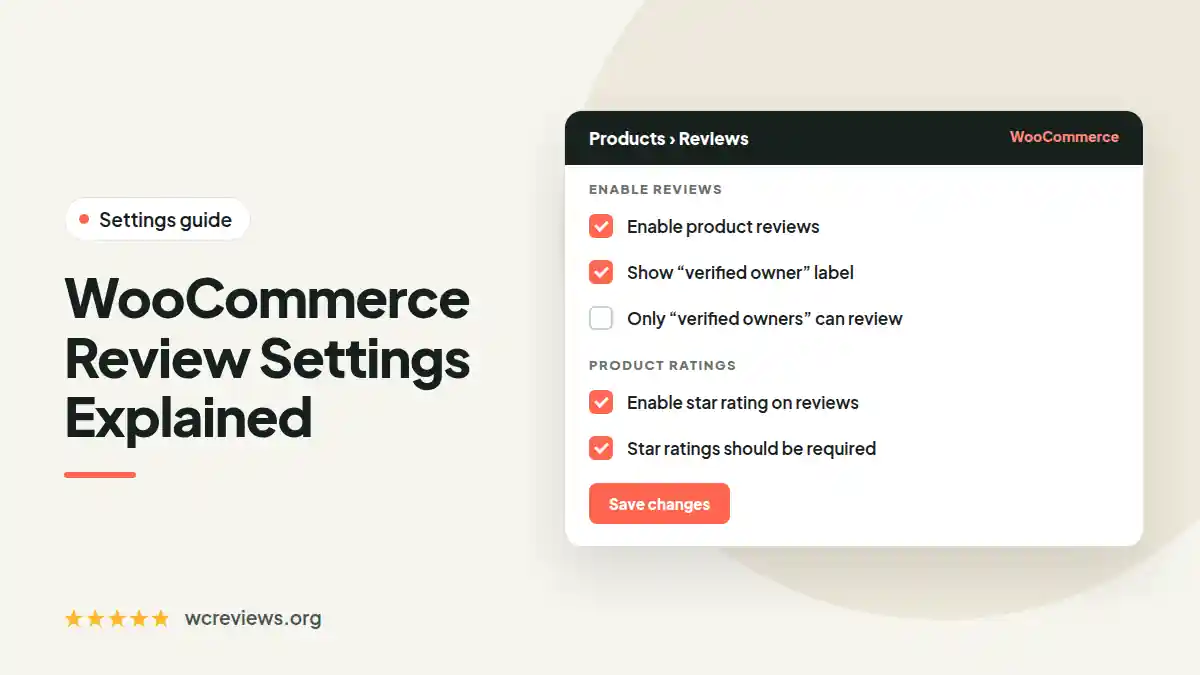
WooCommerce has a short list of review settings, but they control a lot: whether customers can review at all, who can leave a review, whether star ratings are required, and whether shoppers can see which reviews come from real buyers. A few more options live outside WooCommerce’s own settings, in WordPress’s discussion settings and on each product.
This guide walks through every WooCommerce review setting, where to find it, what it does, and which combination works best for most stores. It also covers WooCommerce’s newer built-in review request email, which is still in beta.
Where to Find WooCommerce Review Settings
Go to WooCommerce > Settings > Products and scroll down to the Reviews section. You’ll see these options:
- Enable product reviews
- Show “verified owner” label on customer reviews
- Reviews can only be left by “verified owners”
- Enable star rating on reviews
- Star ratings should be required, not optional
Click Save changes after changing any of them. If you only see some of these options, tick Enable product reviews and Enable star rating on reviews first, since the related options may only appear once the main setting is on.
Every Review Setting Explained
Enable product reviews
This is the main switch. When it’s on, product pages show a Reviews tab with existing reviews and a form for leaving a new one. When it’s off, the tab and the form disappear across your whole store.
Recommendation: keep it on. Reviews are one of the strongest signals shoppers use to decide whether to buy.
Show “verified owner” label on customer reviews
Adds a “verified owner” label to reviews from customers who bought the product from your store. WooCommerce shows the label when the reviewer’s email address or account matches an order for that product with a paid status, such as Processing or Completed.
Recommendation: turn it on. It costs nothing and helps shoppers trust your reviews. Our guide to keeping fake reviews off your store explains what the label does and doesn’t prove.
Reviews can only be left by “verified owners”
Limits the review form to customers who bought the product. Anyone else sees a message saying only logged-in customers who purchased the product can leave a review.
This is the strongest protection against spam and fake reviews, but it has a cost. Customers who checked out as guests can’t review unless they log in to an account linked to their order, so you may get fewer reviews overall.
Recommendation: leave it off for most stores, and use moderation instead (see below). Turn it on if you get a lot of spam or fake reviews.
Enable star rating on reviews
Adds a 1 to 5 star rating to the review form and shows each review’s stars, plus the product’s average rating. Star ratings are also what Google uses for review rich snippets, the stars that can appear under your products in search results.
Recommendation: turn it on.
Star ratings should be required, not optional
Makes customers choose a star rating before they can submit a review. Without it, customers can leave a written review with no rating, which doesn’t count towards the product’s average.
Recommendation: turn it on, so every review contributes to your average rating.
The Best Review Settings for Most Stores
| Setting | Recommended | Why |
|---|---|---|
| Enable product reviews | On | Reviews help shoppers decide |
| Show “verified owner” label | On | Builds trust in genuine reviews |
| Only “verified owners” can review | Off, unless you get spam | Guest customers can still review |
| Enable star rating | On | Needed for average ratings and Google stars |
| Star ratings required | On | Every review counts towards the average |
How to Turn Reviews On or Off for One Product
You can also control reviews product by product. Edit the product, open the Product data box, go to the Advanced tab, and tick or untick Enable reviews. Then update the product.
This is useful for products where reviews don’t make sense, such as gift cards, samples or custom quotes.
To change many products at once, go to Products > All Products, select the products, choose Edit from the Bulk actions menu, and set Comments to allow or not allow. WooCommerce reviews are stored as WordPress comments, which is why the option uses that name.
Review Moderation Settings
Because product reviews are WordPress comments, several moderation options live in Settings > Discussion, not in WooCommerce. These apply to reviews as well as blog comments:
- Comment must be manually approved: holds every new review until you approve it. Good for stores that want to check reviews before they appear.
- Comment author must have a previously approved comment: auto-approves reviews from customers you’ve approved before, and holds the rest.
- Users must be registered and logged in to comment: requires customers to log in before they can leave a review, even if the verified-owners-only setting is off.
- Comment Moderation and Disallowed Comment Keys: hold or block reviews that contain certain words, links or email addresses.
- Email me whenever: controls the emails WordPress sends when a new review is posted or held for moderation.
Recommendation: if you don’t use verified-owners-only, turn on manual approval or the “previously approved” option, and use a spam filter such as Akismet. Approve genuine reviews promptly, including critical ones.
Where to Manage and Reply to Reviews
All your product reviews are listed under Products > Reviews. Hover over a review to Approve or Unapprove it, Reply, use Quick Edit or Edit, mark it as Spam, or move it to the Trash. You can filter reviews by type, rating or product, and use bulk actions to approve or remove several at once.
Replies appear under the original review on the product page. For help with critical reviews, see how to respond to negative reviews.
WooCommerce’s Built-In Review Request Email (Beta)
WooCommerce now includes its own review request email, called Customer review request. It’s still a beta feature and is turned off by default.
How to turn it on
- Go to WooCommerce > Settings > Advanced > Features.
- Enable Customer review request (beta) and save. WooCommerce creates a “Review your order” page for you.
- Go to WooCommerce > Settings > Emails, open Review request, enable the email, and choose the delay in days. The default delay is 7 days.
How it works
- The email is scheduled when an order is marked Completed and sent after the delay you choose.
- It contains one link to a page where the customer can rate every product in the order. A star rating is required for each product they review, and written text is optional.
- It works for guest orders, so customers don’t need an account.
- Reviews follow your normal moderation settings, so they may be held for approval.
- If the order is later cancelled or refunded, the scheduled email is cancelled. Fully refunded items and products with reviews turned off are left out.
What it doesn’t do
WooCommerce’s documentation doesn’t mention photo or video uploads, follow-up reminders, or sending at different times for different order statuses. If you want those, you’ll need a review plugin. Our guide on sending review reminders in WooCommerce compares the options.
Common Review Setting Problems
- The Reviews tab is missing. Check that Enable product reviews is on, and that Enable reviews is ticked on the product itself. Some themes and page builders also hide the tab. See WooCommerce reviews not showing for more fixes.
- Customers say they can’t leave a review. Check whether Reviews can only be left by “verified owners” or WordPress’s Users must be registered and logged in to comment is on. Either one blocks guest customers.
- Guest reviews from a review plugin don’t work. If your plugin allows guest reviews, WooCommerce’s verified-owners-only setting can block them. Turn it off and let the plugin handle it.
- New reviews don’t appear. They may be waiting for approval. Check Products > Reviews for pending reviews.
- Reviews have no stars. Turn on Enable star rating on reviews. Reviews submitted while ratings were off won’t have a rating.
When the Built-In Settings Aren’t Enough
WooCommerce’s review settings cover the basics: turning reviews on, star ratings, and who can review. They don’t let customers add photos or videos, send automated reminders with your own timing and message, or show reviews in different layouts around your site.
That’s what review plugins add. ReviQuo, for example, extends the standard WooCommerce review form with up to 5 photos and video uploads or webcam recording, automated review reminders based on order status and delay, verified customer badges, and review displays such as lists, grids and sliders. Because it builds on WooCommerce’s own review system, all the settings in this guide keep working. Disclosure: ReviQuo is our plugin.
See our honest comparison of WooCommerce review plugins for other options.
Frequently Asked Questions
Where are the review settings in WooCommerce?
Go to WooCommerce > Settings > Products and scroll to the Reviews section. Moderation options are in Settings > Discussion, and per-product settings are in each product’s Product data > Advanced tab.
How do I approve reviews in WooCommerce?
Go to Products > Reviews, hover over a pending review, and click Approve. To hold all new reviews for approval, turn on Comment must be manually approved in Settings > Discussion.
Can guests leave reviews in WooCommerce?
Yes, as long as Reviews can only be left by “verified owners” is off in WooCommerce and Users must be registered and logged in to comment is off in WordPress’s discussion settings.
How do I disable reviews on one product?
Edit the product, open Product data > Advanced, and untick Enable reviews.
Does WooCommerce send review request emails?
Yes, with its Customer review request (beta) feature, which is off by default. Turn it on under WooCommerce > Settings > Advanced > Features, then enable the Review request email under Settings > Emails.
Should I only allow verified owners to review?
Only if you have a spam or fake review problem. It blocks guest customers from reviewing, so most stores get more reviews by leaving it off and moderating instead.
Get Your Review Settings Right
To recap: enable reviews, show the verified owner label, turn on required star ratings, and use moderation to keep spam out. Check the discussion settings and each product’s settings if something doesn’t work, and consider WooCommerce’s beta review request email or a review plugin to start collecting more reviews.
Add photo and video reviews and automated reminders to WooCommerce with ReviQuo.