
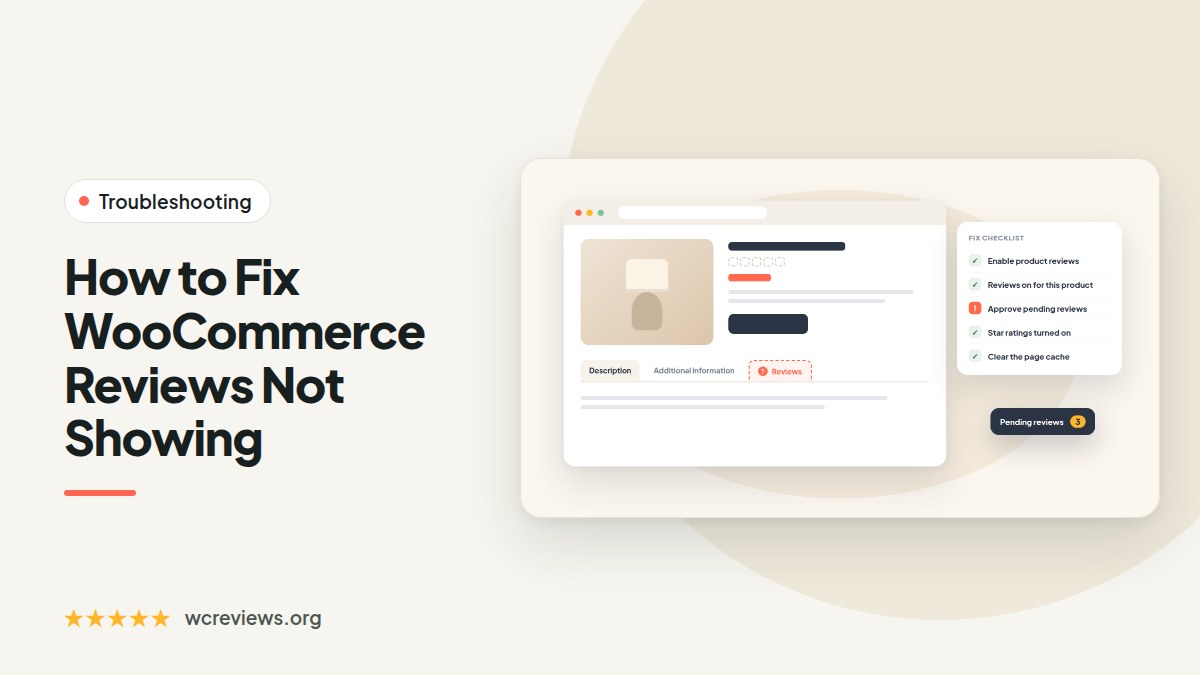
If your WooCommerce reviews aren’t showing, the cause is almost always one of a few settings: reviews are turned off for the store or for that product, the reviews are waiting for approval, star ratings are turned off, or your theme or a plugin is hiding the reviews tab. Most fixes take a couple of minutes once you know where to look.
This guide starts with a quick checklist, then walks through each problem: a missing reviews tab, reviews that were submitted but don’t appear, star ratings that don’t show, customers who can’t leave a review, and caching or plugin conflicts.
Quick Checklist: The 5 Most Common Causes
Check these first. Together they cover most cases of WooCommerce reviews not showing:
- Reviews are turned off store-wide. Check WooCommerce > Settings > Products, in the Reviews section, for Enable product reviews.
- Reviews are turned off for that product. Edit the product and check Enable reviews in Product data > Advanced.
- The reviews are pending approval. Go to Products > Reviews and look for reviews marked Pending.
- Star ratings are turned off. In the same Reviews settings, check Enable star rating on reviews.
- A cached page is hiding the change. Clear your caching plugin, your host’s cache, and any CDN cache, then reload the page in a private window.
If none of these fixes it, work through the sections below for your specific problem.
Problem 1: The Reviews Tab Is Missing
On a standard WooCommerce product page, the Reviews tab sits next to Description and Additional information, and shows the number of reviews, such as “Reviews (3)”. WooCommerce adds that tab only when reviews are open for that product. If the tab is gone, here’s why.
Reviews are turned off for the whole store
Go to WooCommerce > Settings > Products. In the Reviews section, make sure Enable product reviews is checked, then save. When this is off, WooCommerce removes comment support from products entirely, so no product shows a reviews tab or form.
Reviews are turned off for that product
Each product also has its own switch. Edit the product, scroll to the Product data box, open the Advanced tab, and check Enable reviews. Then update the product.
This setting is easy to miss because it’s stored per product. Products that were created or imported while reviews were off can stay closed after you turn reviews back on for the store. To fix many products at once:
- Go to Products > All Products and select the products you want to change.
- Choose Edit from the Bulk actions menu and click Apply.
- Set Comments to Allow and click Update.
A plugin disabled comments
WooCommerce reviews are stored as WordPress comments. Plugins that disable comments site-wide, often installed to stop spam on blog posts, can remove comments from products too, which removes reviews. Check the plugin’s settings and make sure it isn’t disabling comments for the Products post type.
Your theme or page builder removed the tab
Some themes and page builders replace the standard product layout. If the reviews tab disappeared after you changed theme or redesigned your product page, check:
- Theme options: some themes have a setting to show or hide product tabs, including reviews.
- Block themes: in Appearance > Editor, open the Single Product template and make sure it still contains the product details or reviews block. If the template was customized, you can compare it with the original or reset it.
- Page builders: if you built a custom product template, add the builder’s product tabs or reviews widget back to it.
- Custom code: look in your child theme’s
functions.phpor a code snippets plugin for code that unsets thereviewstab, often using thewoocommerce_product_tabsfilter.
A quick test: switch to a default theme, such as the latest Twenty-something theme, on a staging site. If the tab comes back, the cause is your theme or its template.
Problem 2: Reviews Were Submitted but Don’t Show
The tab is there, but a customer’s review isn’t. Or the tab says “There are no reviews yet” even though you know reviews exist.
The review is waiting for approval
Go to Products > Reviews. A number next to the menu item shows how many reviews are pending. Hover over a pending review and click Approve.
Whether reviews need approval depends on Settings > Discussion. If Comment must be manually approved is checked, every review waits for you. If Comment author must have a previously approved comment is checked, first-time reviewers wait. Manual approval is a reasonable choice to keep out spam. Just make sure someone checks the queue regularly.
The review was marked as spam
Anti-spam plugins sometimes catch genuine reviews. In Products > Reviews, open the Spam view, and use Not Spam on any real reviews. Also check the comment moderation and disallowed keyword lists in Settings > Discussion, since a common word in that list can send reviews straight to spam or moderation.
The review is on a different product
Reviews belong to the main product, not to individual variations. If you’re looking at a variation, its reviews are the parent product’s reviews. On multilingual stores, reviews may show only on the language version of the product they were left on, depending on your translation plugin’s settings.
The review was imported, but the counts didn’t update
WooCommerce stores each product’s average rating and review count, and updates them when a review’s status changes. If reviews were added directly to the database by an import tool or custom script, those stored totals may be out of date. That can make the review count, average rating, or stars look wrong. Changing the status of one review for that product, for example unapproving and approving it again, makes WooCommerce recalculate the product’s totals.
Problem 3: Star Ratings Don’t Show
Star ratings are turned off
In WooCommerce > Settings > Products, check Enable star rating on reviews. When it’s off, the review form has no rating field, and WooCommerce doesn’t show stars on product pages or in your shop.
The product has no rated reviews yet
WooCommerce only shows stars for a product that has a rating. A product with no reviews, or only reviews without a star rating, shows no stars at all, not empty ones. If Star ratings should be required, not optional is unchecked, customers can leave reviews without a rating, which don’t count toward the average.
Stars show on product pages but not in the shop
WooCommerce adds stars under each product’s title in the shop and category grids. If they’re missing there but fine on product pages, your theme or a shop page builder has probably removed or replaced that part of the product grid. Check your theme’s shop or product archive settings.
You see letters such as “SSSSS” instead of stars
WooCommerce draws its stars using a small icon font. If that font doesn’t load, the stars appear as letters instead. Common causes are an optimization plugin that removes or delays WooCommerce’s styles or fonts, a CDN that blocks fonts loaded from another domain, or a theme that turns off WooCommerce’s default styles. Turn off font and CSS optimization options one at a time, or exclude WooCommerce’s styles, until the stars return.
If stars are missing in Google search results rather than on your site, that’s a separate issue. See our guide on how to show star ratings in Google for WooCommerce.
Problem 4: Customers Can’t Leave a Review
Only verified owners can review
If Reviews can only be left by “verified owners” is checked, the form appears only for logged-in customers who bought that product. Everyone else sees the message “Only logged in customers who have purchased this product may leave a review.” That’s the setting working as intended. If your customers usually check out as guests, they won’t be able to review unless they log in to an account linked to their order, so consider whether this setting suits your store.
Customers must be logged in
If Users must be registered and logged in to comment is checked in Settings > Discussion, guests see a “You must be logged in to post a review” message instead of the form. Turn it off to accept guest reviews, or make it easy for customers to create an account at checkout.
The form appears but submitting fails
If customers fill in the form but get an error or a blank page, check for a security plugin or firewall blocking comment submissions, a CAPTCHA that fails to load, or a missing rating when ratings are required. Test the form yourself in a private window, and check your server’s error log if the page goes blank.
Problem 5: Caching and Plugin Conflicts
Your changes are hidden by a cache
Page caching stores a copy of each page. After you approve a review or change a setting, visitors may keep seeing the old copy until the cache refreshes. Clear the cache in your caching plugin, your host’s control panel, and your CDN, then check the page in a private window.
Another plugin is interfering
Review plugins, page builders, and optimization plugins can all change how reviews display. To find a conflict safely:
- Make a full backup, or use a staging copy of your site.
- Switch to a default theme and check whether reviews appear.
- Deactivate plugins other than WooCommerce, then reactivate them one at a time, checking the product page after each one.
- When reviews disappear again, you’ve found the plugin responsible. Check its settings or contact its support team.
The free Health Check & Troubleshooting plugin, made by the WordPress.org team, can help here. Its troubleshooting mode turns off plugins and switches the theme for your own logged-in session only, so customers aren’t affected while you test.
Using a Review Plugin? Check This Too
If you use a plugin to add photo or video reviews, the fixes above still apply when the plugin stores reviews as standard WooCommerce reviews. That’s how ReviQuo works. Disclosure: ReviQuo is our plugin. Reviews, ratings, and approval status stay in WooCommerce, so the same settings control whether they show.
A few extra things to check with any media review plugin:
- Media reviews may need separate approval. Some plugins hold reviews with photos or videos for moderation even when text reviews are approved automatically. In ReviQuo, video reviews wait for approval by default. Turn on Auto-approve videos in Review Settings if you’d rather publish them straight away.
- Upload limits can block submissions. Large video files can exceed your server’s upload size or time limits, which stops the review from being saved. Your host can raise these limits.
- Camera recording needs HTTPS. Browsers only allow webcam recording on secure pages.
The ReviQuo documentation has a troubleshooting section covering these in detail.
Frequently Asked Questions
Why are my WooCommerce reviews not showing on the product page?
The most common reasons are that reviews are turned off for the store or that product, the reviews are pending approval, or a cached page is showing an old version. Start with the quick checklist at the top of this guide.
How do I enable reviews in WooCommerce?
Go to WooCommerce > Settings > Products and check Enable product reviews in the Reviews section. Then make sure Enable reviews is checked on each product, under Product data > Advanced.
Why does my product say “There are no reviews yet” when it has reviews?
The reviews are probably pending, marked as spam, or attached to a different product or language version. Check Products > Reviews and filter by status.
Why do my stars show as letters?
WooCommerce’s star icon font isn’t loading. This is usually caused by an optimization plugin, a CDN blocking fonts, or a theme that turns off WooCommerce’s styles.
Can I let guests leave reviews?
Yes. Make sure Reviews can only be left by “verified owners” is unchecked in the WooCommerce settings, and Users must be registered and logged in to comment is unchecked in Settings > Discussion.
Do I need to approve every review?
Only if Comment must be manually approved is checked in Settings > Discussion. Manual approval helps keep out spam, but approve genuine reviews promptly so customers see them.
Get Your Reviews Back on the Page
To recap: check that reviews are on for the store and for the product, approve pending reviews, turn on star ratings, clear your caches, and then look at your theme and plugins. Most missing reviews come back with one of those steps.
Once your reviews are showing, the next step is collecting more of them. Our guides on sending review reminders and getting more WooCommerce reviews will help.
Collect photo and video reviews that work with WooCommerce’s own review settings using ReviQuo.