
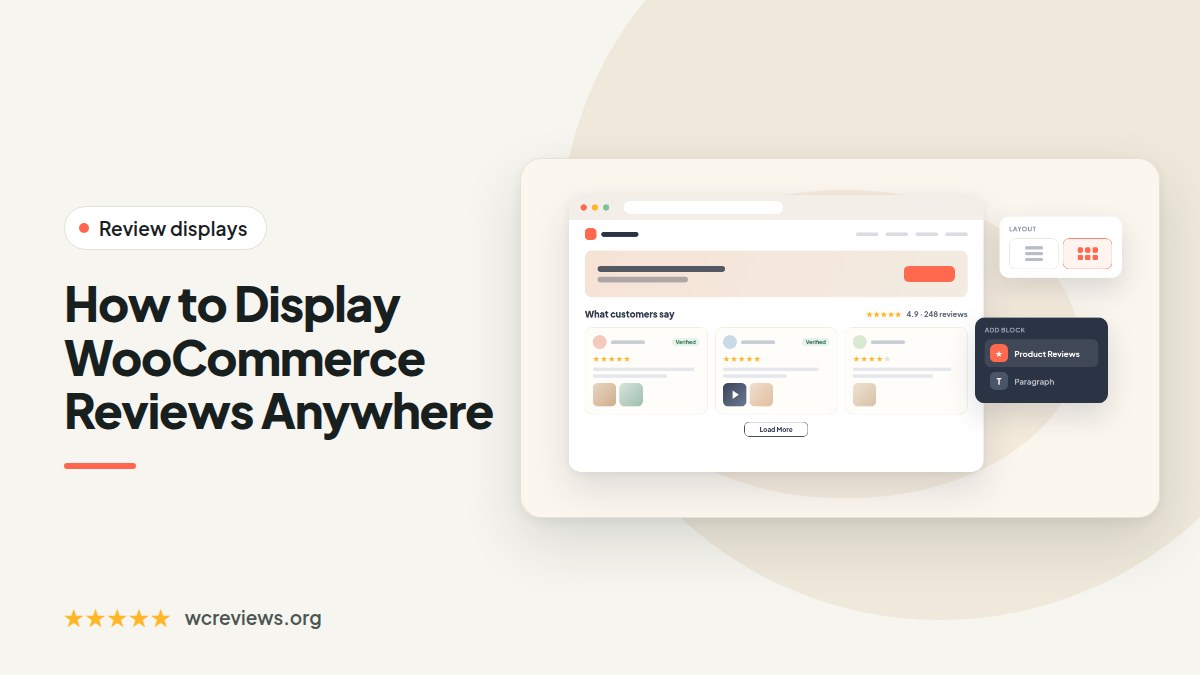
If you want to show WooCommerce reviews on your homepage, a landing page, or anywhere else outside the product page, here’s the short answer: use WooCommerce’s built-in review blocks for simple text reviews, or a review plugin when you want photo and video reviews, rating filters, or a grid layout. WooCommerce doesn’t include a reviews shortcode, so if your page builder relies on shortcodes, you’ll need a plugin for that too.
This guide explains where reviews help most, how to use WooCommerce’s review blocks step by step, what they can’t do, how to build reusable review displays with ReviQuo, and how to keep review sections fast and useful.
Why Show Reviews Beyond the Product Page?
By default, WooCommerce shows reviews only in the Reviews tab of each product page. Shoppers who land on your homepage, a category page, or a campaign landing page don’t see any of that proof until they click into a product.
Bringing reviews forward helps in a few ways:
- It builds trust early. New visitors see that real customers buy from you before they decide whether to browse further.
- It supports your best sellers. Featuring reviews of specific products on a landing page answers questions right where you’re asking people to buy.
- It shows your reviews are read. A visible review section tells existing customers their feedback matters, which makes them more likely to leave reviews themselves.
Where to Show WooCommerce Reviews
- Homepage: a short section of recent or top-rated reviews from across your store.
- Landing pages: reviews of the specific products the page promotes.
- Category pages: reviews from products in that category, so shoppers can compare.
- A dedicated reviews page: a “Customer Reviews” or “Wall of Love” page you can link from your menu and emails.
- Product page sections: a richer review layout further down the product page, with photo and video reviews and filters.
Reviews close to checkout can also help, but keep anything you add to the cart or checkout small. That’s where shoppers are already deciding, and a long block of content can distract them.
Option 1: WooCommerce’s Built-In Review Blocks
WooCommerce includes three review blocks you can add to any page or post in the block editor. They work with block themes and with classic themes, as long as you’re editing in the block editor.
- All Reviews shows reviews from every product in your store.
- Reviews by Product shows reviews for the product you choose.
- Reviews by Category shows reviews for products in the categories you choose.
How to add a review block
- Open the page you want to edit, such as your homepage, in the block editor.
- Click the + button where you want the reviews to appear and search for reviews.
- Choose All Reviews, Reviews by Product, or Reviews by Category.
- For Reviews by Product or Reviews by Category, search for and select the product or categories to show.
- Use the block settings in the sidebar to choose what each review shows and how reviews are ordered.
- Update the page and check it on desktop and mobile.
What you can change
- Content: show or hide the product name, the reviewer’s name, an image, the star rating, the review date, and the review text.
- Image: choose between the reviewer’s photo (their avatar) and the product image.
- Order: most recent, highest rating, or lowest rating. You can also let shoppers change the order themselves.
- Amount: how many reviews show at first, and whether a Load more button reveals more.
Two settings depend on the rest of your site. Star ratings only show if ratings are turned on in WooCommerce > Settings > Products. Reviewer photos only show if avatars are turned on in Settings > Discussion.
What about widget areas and classic themes?
If your theme uses widget areas, such as a sidebar or footer, WooCommerce also has a Recent Product Reviews widget. It’s a simple list of recent reviews with product images. On newer setups that use block widgets, the review blocks above can be added to widget areas too.
Where the built-in blocks fall short
The built-in blocks are a good free option for showing text reviews. They’re limited in a few ways that matter to many stores:
- No photo or video reviews. WooCommerce reviews are text and a star rating. The image option shows the reviewer’s avatar or the product image, not photos the customer took.
- No rating summary or filters. Shoppers can’t see the star breakdown or filter to 5-star reviews or reviews with photos.
- Limited layout control. Reviews display as a list. Grid layouts and per-device columns need custom CSS.
- No shortcode. If you build pages with a page builder that uses shortcodes, there’s no built-in shortcode for reviews.
- Not reusable. Each block is set up separately. If you want the same review section on several pages, you configure it on each one.
Option 2: Reusable Review Displays With ReviQuo
Disclosure: ReviQuo is our plugin.
ReviQuo adds photo and video reviews to the standard WooCommerce review form, and it includes a builder for review displays you can place anywhere. You set a display up once, give it a name, and reuse it on as many pages as you like. Because ReviQuo stores reviews as native WooCommerce reviews, the same reviews power both your product pages and your displays.
Step 1: Create a review display
Go to ReviQuo > Review Shortcode and create a new display. Give it a clear name, such as “Homepage reviews” or “Linen collection landing page.” A live preview shows your changes as you make them.
Step 2: Choose which reviews to show
Pick the source of the reviews:
- All products: reviews from across your store, good for homepages and a dedicated reviews page.
- Selected products: reviews for the products you pick, good for landing pages and collections.
- Current product: reviews for whichever product page the display is on, good for adding a richer review section to your product template.
Then choose the order (newest, oldest, highest rating, or lowest rating) and how many reviews load at first, from 1 to 24. A Load More button shows the next set without reloading the page.
Step 3: Choose the layout and what each review shows
- Layout: a list, a grid, or a masonry layout, with separate column counts for desktop, tablet, and mobile.
- Review content: show or hide the rating summary, rating and media filters, the product name, the review text, the reviewer’s avatar, the verified customer badge, customer photos, and customer videos.
- Style: spacing, corner radius, and the background, text, accent, and star colors, so the section matches your theme.
The list layout is included in the free version. Grid and masonry layouts and the verified customer badge need ReviQuo Pro.
Step 4: Place it on your page
Save the display, then add it to any page in whichever way suits your site:
- Block editor: add the Product Reviews block and choose your saved display.
- Elementor: drag the Product Reviews widget onto the page and choose your saved display.
- Shortcode: copy the shortcode shown for your display and paste it into a Shortcode block, a page builder module, or a widget area.
To change the section later, edit the saved display once. Every page that uses it updates automatically.
Tips for Review Sections That Help Shoppers
Show recent reviews, not just perfect ones
Ordering by highest rating is tempting, but a wall of only 5-star reviews can look curated. Showing the most recent reviews, with an honest rating summary, is usually more believable. Keep critical reviews visible on product pages too, along with your replies.
Lead with photo and video reviews
Reviews with customer photos and videos catch the eye and show the product in real use. If you collect them, turn on media in your display and consider a grid layout so images have room. Our guides on adding photo reviews and adding video reviews explain how to collect them.
Keep it short on landing pages
On a homepage or landing page, three to six reviews are usually enough. Use Load More, or link to a full reviews page, for shoppers who want to read more.
Match the reviews to the page
Reviews about the product a page is selling are more persuasive than general store reviews. On a landing page for one product or collection, show reviews for those products only.
Check mobile and page speed
Preview the section on a phone. Use one column on mobile so review text stays readable, and avoid loading a large number of reviews with media at once. Starting with a small number and using Load More keeps the page light.
Don’t copy reviews by hand
Pasting review text into a page as static content means it never updates, and it can drift from what customers actually wrote. Showing reviews dynamically keeps them current and accurate.
Do Reviews on Other Pages Show Stars in Google?
Not usually. Google’s product rating stars are meant for pages about a single product. A homepage or category page that shows reviews from many products isn’t eligible for product rating stars, however good the section looks. Review sections on these pages are there to help shoppers, which is reason enough to add them.
Stars in search results come from your single product pages, where WooCommerce adds the rating to its structured data. Our guide on how to show star ratings in Google for WooCommerce covers that in detail.
Frequently Asked Questions
Does WooCommerce have a shortcode for reviews?
No. WooCommerce provides review blocks (All Reviews, Reviews by Product, and Reviews by Category) and a Recent Product Reviews widget, but no shortcode for reviews. Review plugins such as ReviQuo add one.
How do I show reviews on my WooCommerce homepage?
Edit your homepage in the block editor and add the All Reviews block. Choose what each review shows and how many appear, then update the page. For photo and video reviews, filters, or a grid layout, use a review plugin’s display instead.
Can I show reviews for only one product on a landing page?
Yes. Use WooCommerce’s Reviews by Product block, or create a ReviQuo display with the source set to Selected products.
Can I show customer photos and videos in a review section?
Not with WooCommerce alone, since its reviews don’t include customer media. ReviQuo collects photo and video reviews and can show them in its review displays.
Will adding reviews to my homepage slow it down?
A handful of text reviews has very little effect. Large numbers of reviews with images or videos add more weight, so start with a small number, use Load More, and check the page on mobile.
Can I hide negative reviews from my review sections?
You can choose the order, but hiding all critical feedback can make reviews look less believable. Showing recent reviews, and replying to critical ones on the product page, usually builds more trust.
Put Your Reviews to Work
To recap: decide where reviews will help most, use WooCommerce’s review blocks for simple text reviews, and use a review display when you want customer photos and videos, filters, grid layouts, or one section you can reuse across pages. Keep sections short, match them to the page, and check them on mobile.
If you don’t have many reviews to show yet, start with our guide on how to get more reviews on WooCommerce.
Show photo and video reviews anywhere on your WooCommerce store with ReviQuo. You can also browse the ReviQuo documentation for setup details.